FSBO INSTRUCTIONS
FOR SALE BY OWNER STEP-BY-STEP INSTRUCTIONS
Please read below the step-by-step “For Sale by Owner” instructions before signing up for a FSBO Package, or creating an account or property listing.
REGISTRATION, LOGIN, AND ACCOUNT VERIFICATION
Please read and follow the steps below.
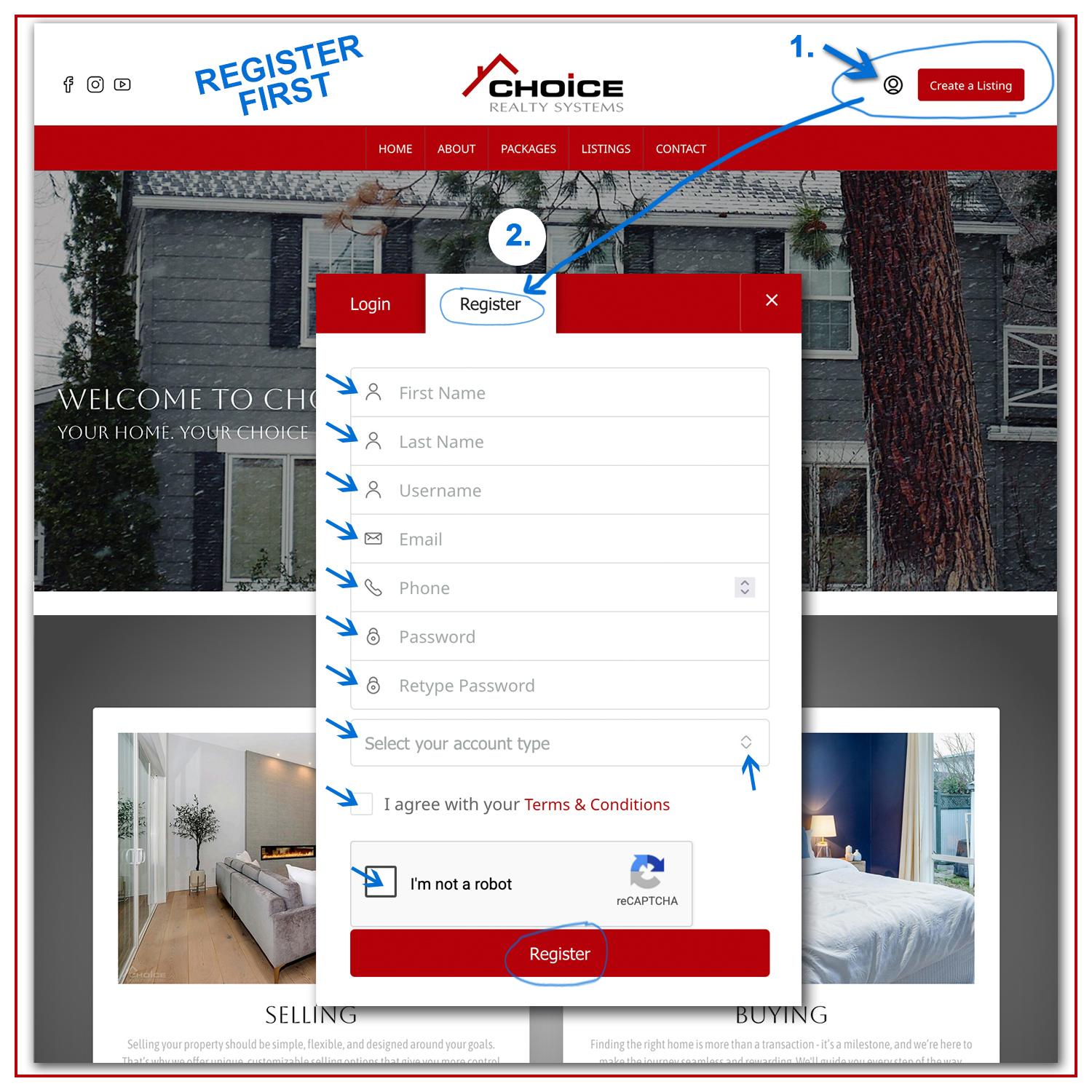
- Click on the LOGIN/REGISTER ICON located at the top header of the website (top right-hand corner) and select “REGISTER” on the popup window.
- Fill out your personal information (this information will be displayed with your property listing), agree with the “Terms & Conditions” by checking mark the appropriate box, then check mark “I’m not a robot” box to verify you are human. Click on the “REGISTER” button to proceed. (Your new login information will be sent to your email address)
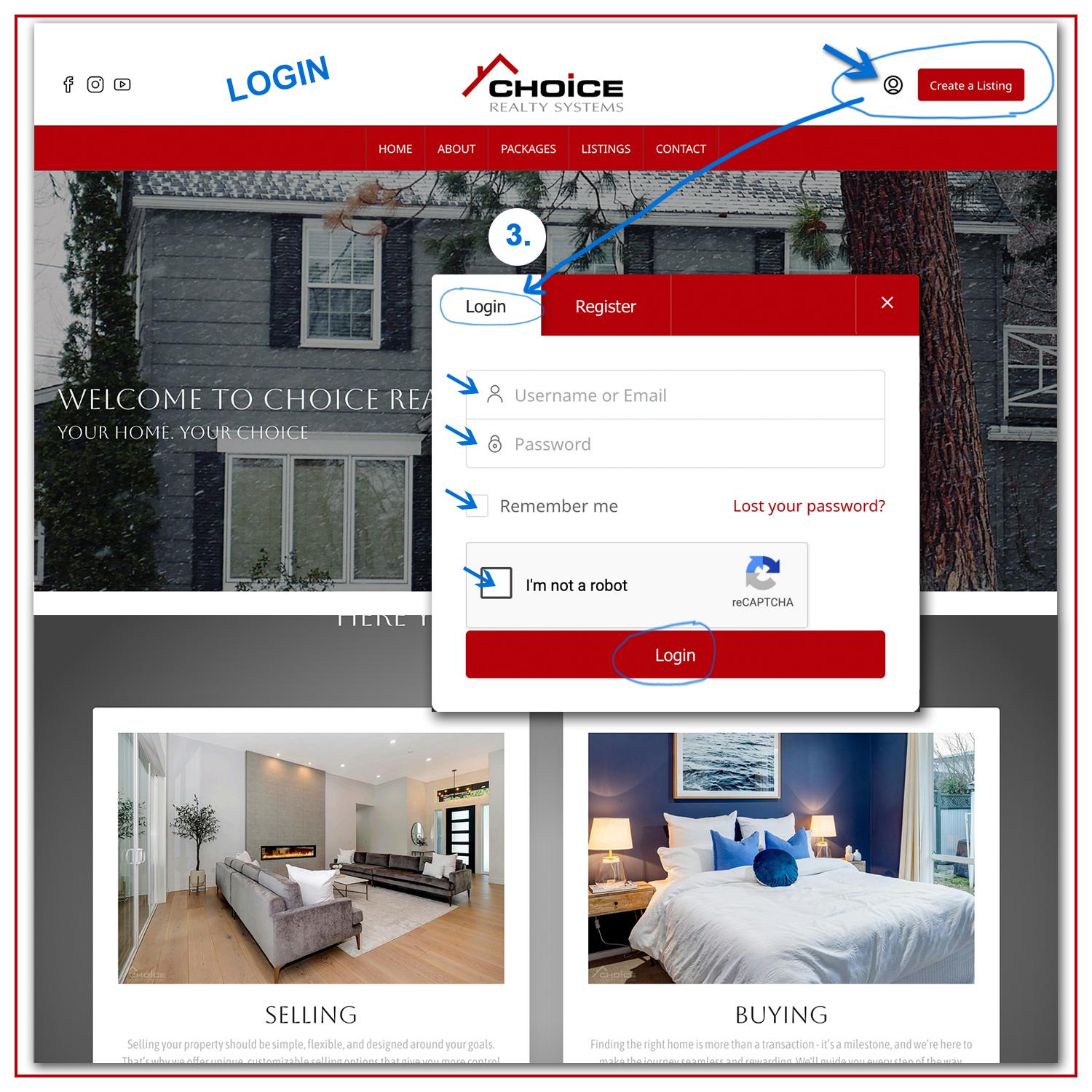
- After registering you will be automatically logged out. Then click again on the LOGIN/REGISTER ICON and select “LOGIN” on the popup window. Fill it out with your new credentials (you have just created), check mark “I’m not a robot” box, and then click on the LOGIN button to proceed.
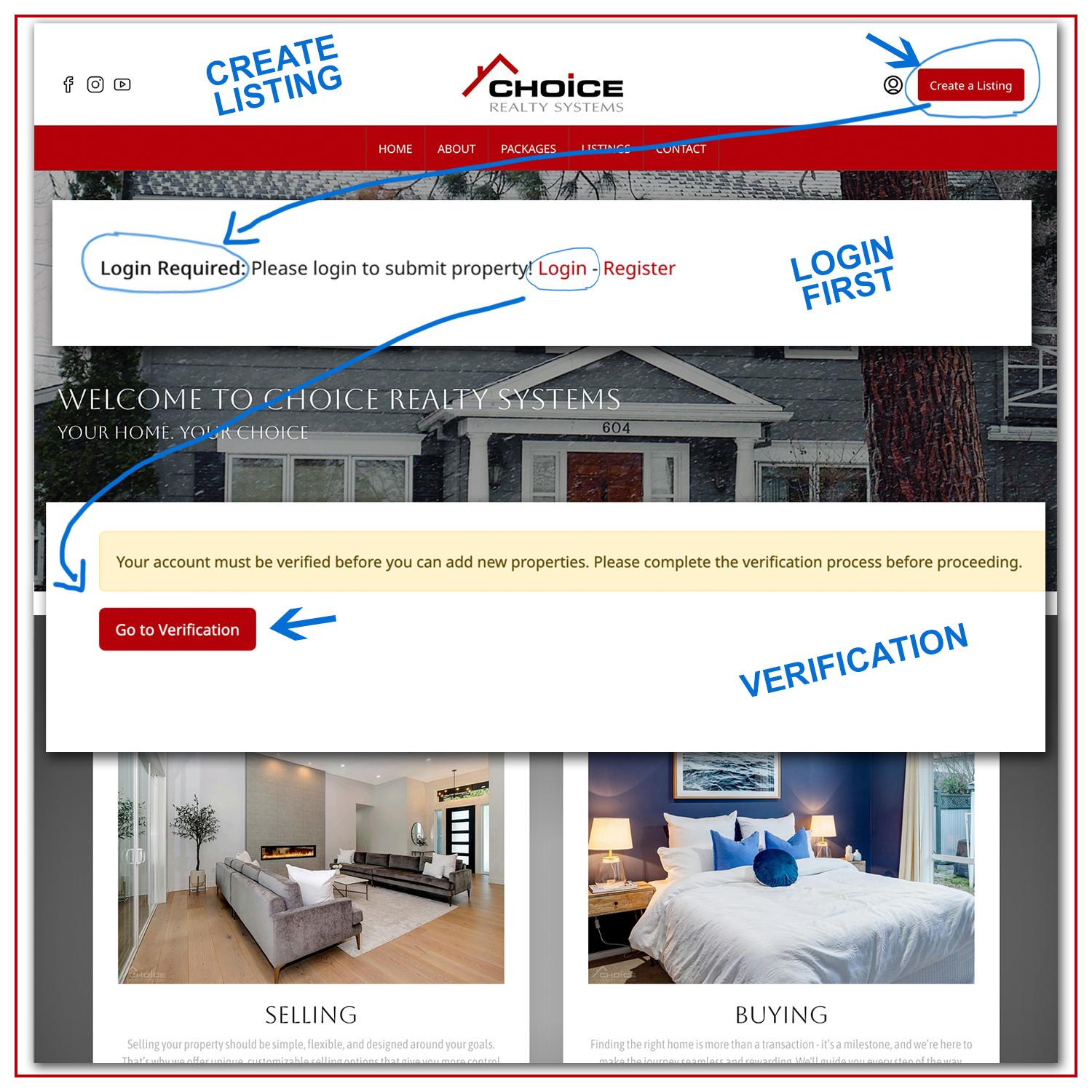
4. Before creating a new listing you will need to purchase your FSBO Package (instructions below), then you will be prompt to complete the “VERIFICATION PROCESS” in order to list your property. If you don’t receive any verification request, just click on the “Create a Listing” button located at the top header of the website (beside the login icon), and then click on the “GO TO VERIFICATION” button.
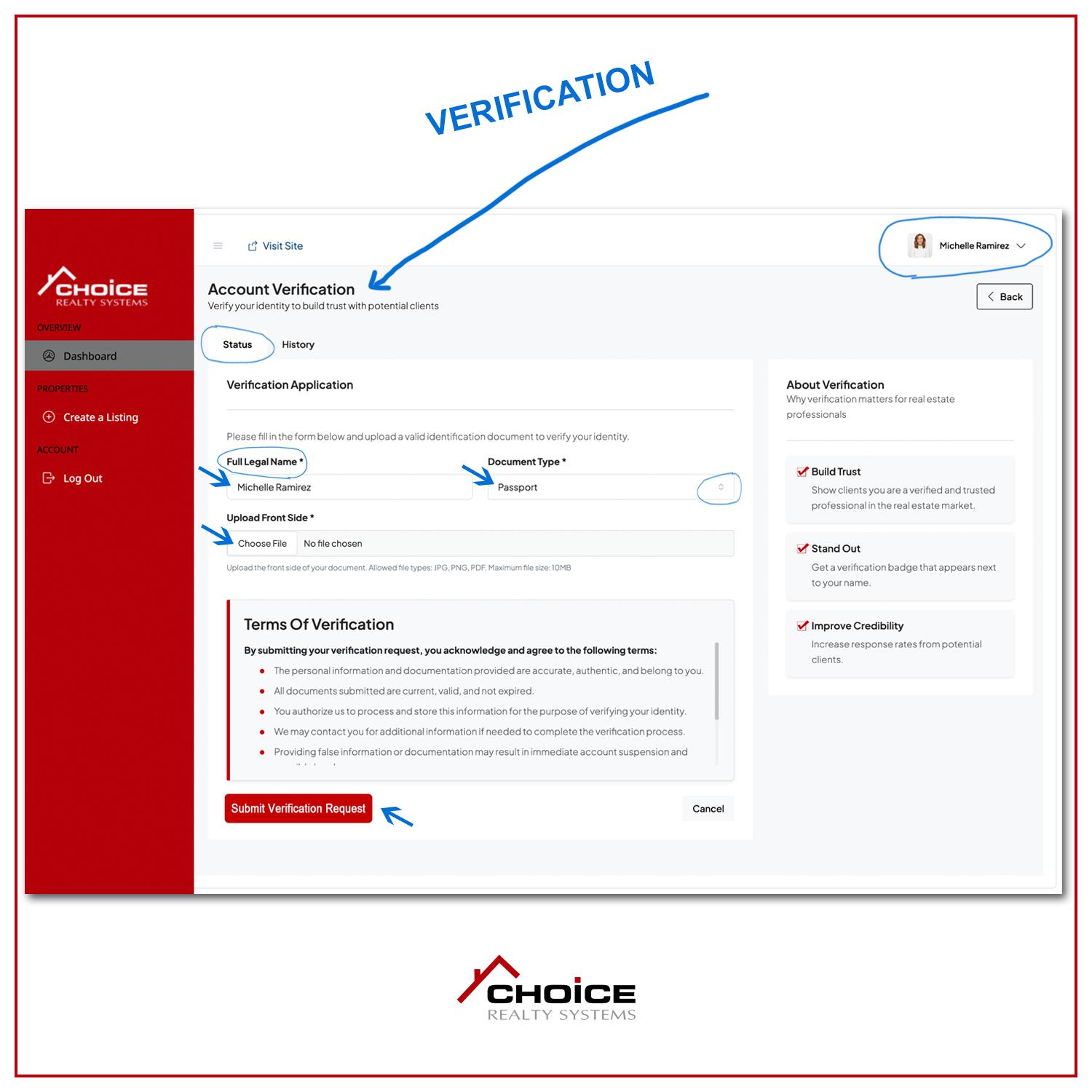
5. Once on the Verification Page, fill out the REQUIRED fields with your FULL LEGAL NAME and upload a document/ID with your photo such as a driver’s license or a passport. Select the document you prefer to use from the options menu in the “Document Type” field and go to the next field. Click “Choose File” and upload it. After your file has been uploaded, click on the “SUBMIT VERIFICATION REQUEST” button.
6. As soon as your Verification Request is submitted and your package has been paid, you can start creating your property listing and also submit it. Please note that your property listing will only go LIVE after your verification is approved and payment has been received.

FSBO – Package Payment & Checkout Process
Please read and follow the steps below.
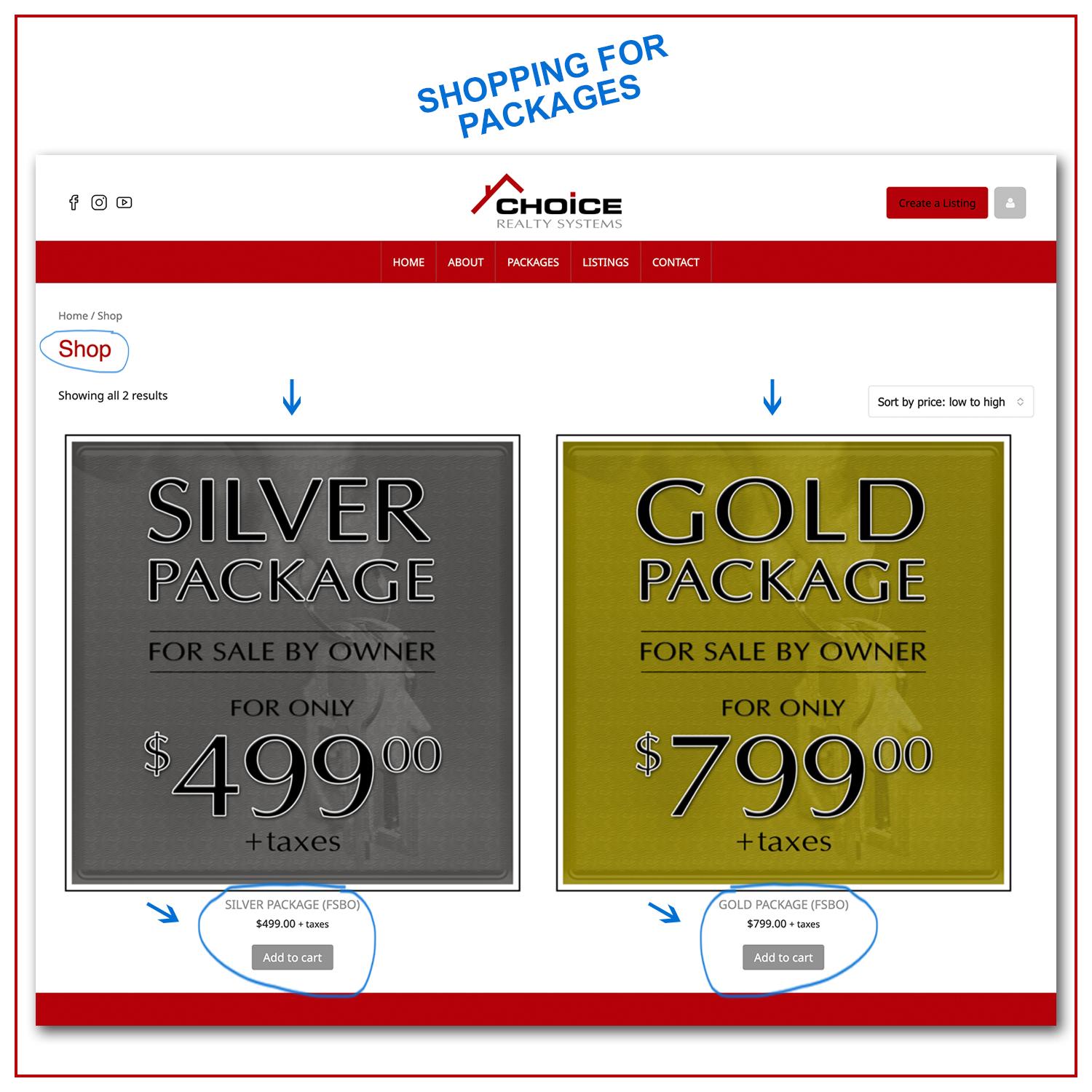
- Choose your package
After logging in, you will be redirected to the Shop page.
- Select the “For Sale by Owner” package that best fits your needs
- Click “Add to Cart” under your chosen package
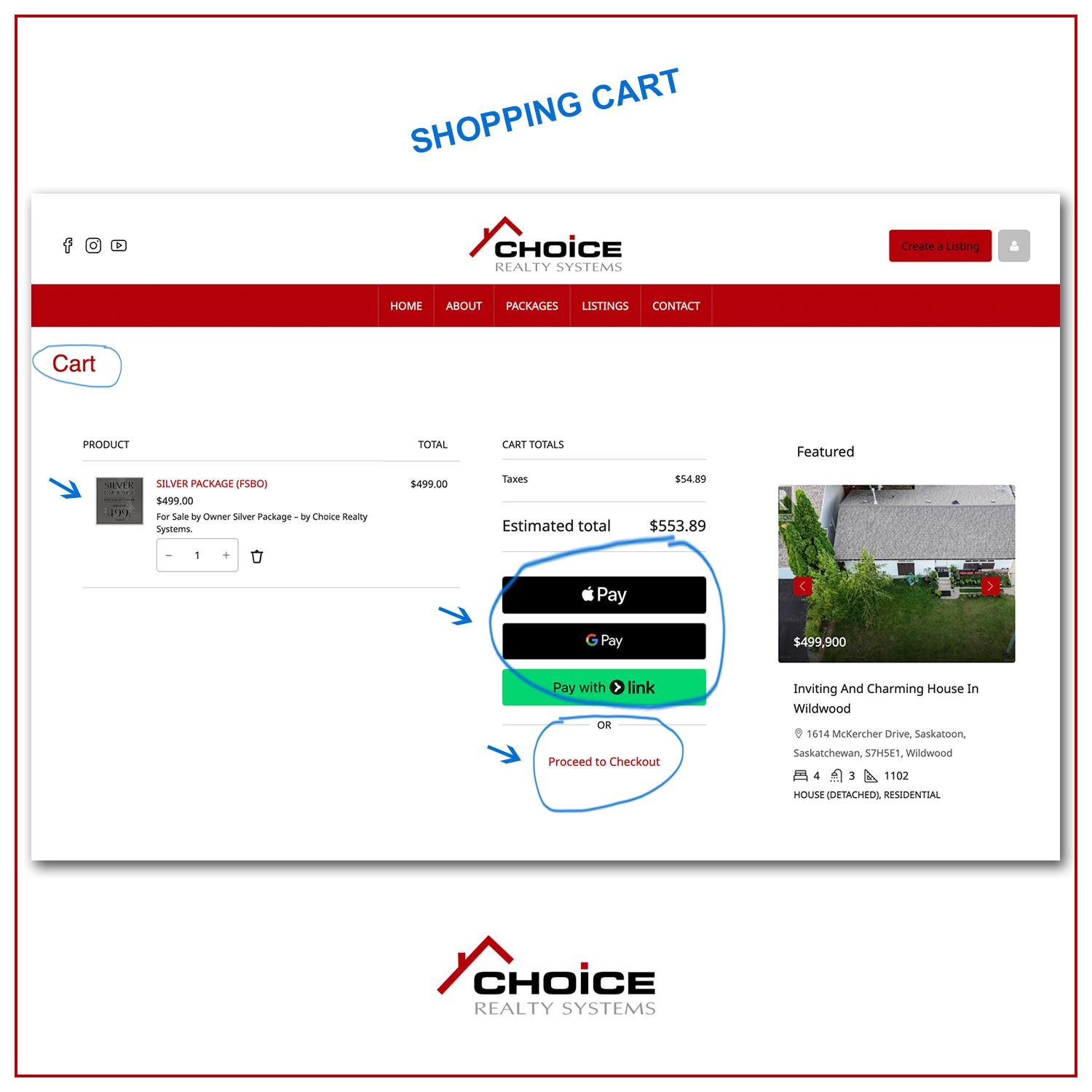
- You will be redirected to the Cart page
- Review your cart
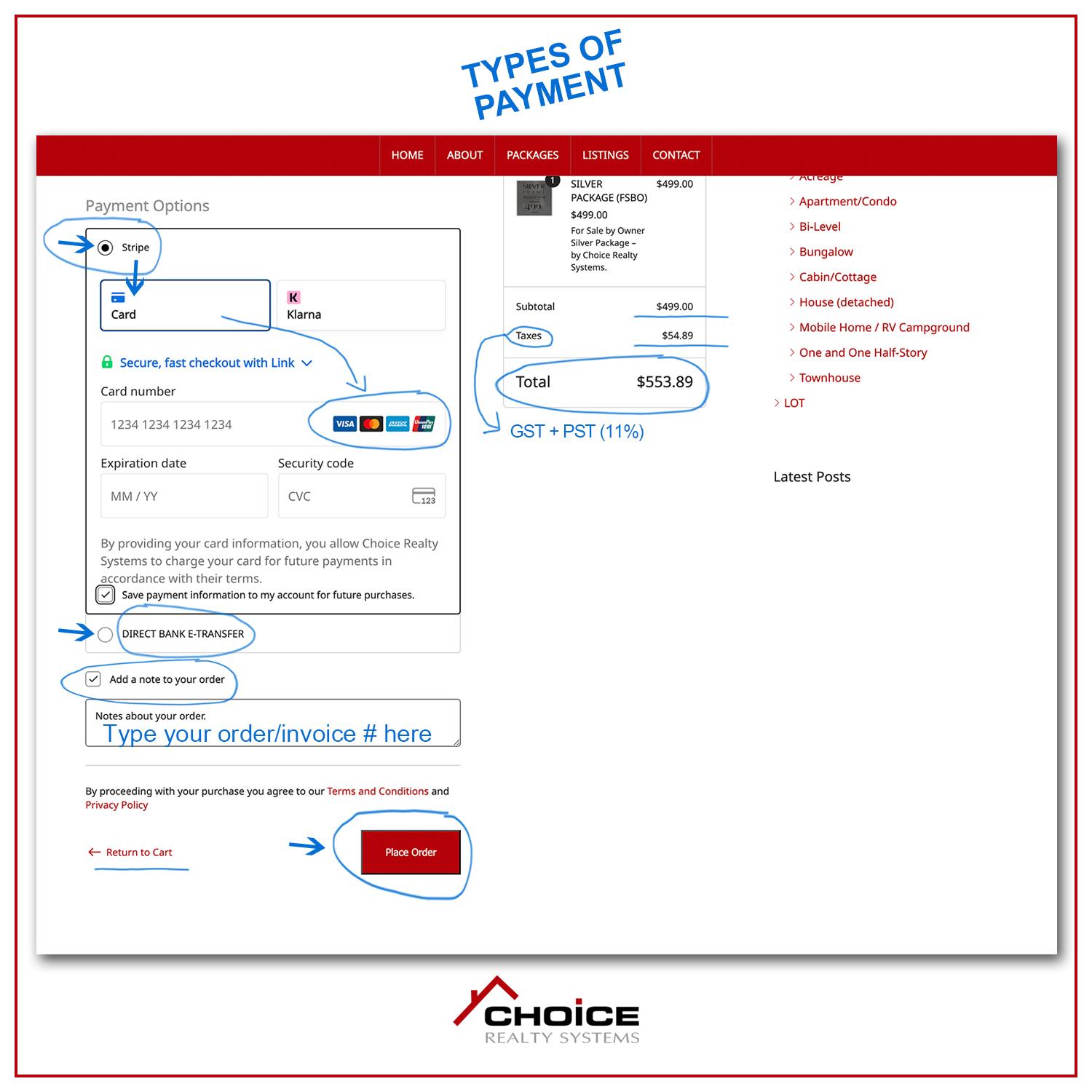
On the Cart page: Confirm the selected package and pricing are correct. *Taxes are automatically calculated and added (GST 5% + PST 6% = 11%)
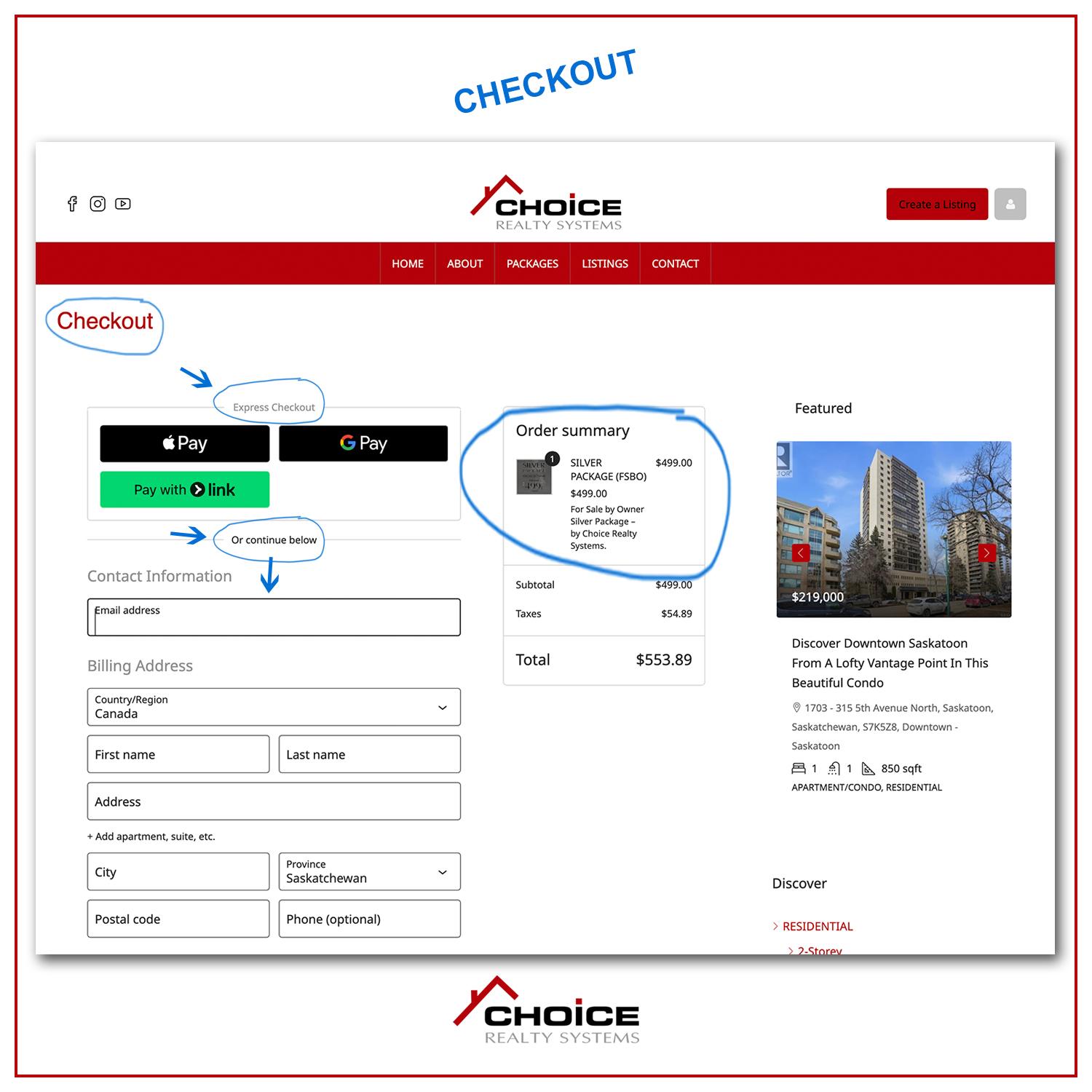
Choose your preferred payment option: Express Checkout (Apple Pay, Google Pay, or Link), or click “Proceed to Checkout” to pay by credit card or bank e-transfer
- Enter billing details
If paying through standard checkout: Complete your contact information and billing address in the secure form
- Select your payment method
- Credit Card (Stripe): Select the Stripe option and enter your card details
- Bank e-Transfer: Select Direct Bank e-Transfer and follow the instructions provided
- Add your order note (required)
For all payment methods:
- Check the “Add a note to your order” box
- Enter your order/invoice number or package name in the Notes field
- Place your order
Click “Place Order” to complete your purchase.
What happens next?
- Now you can click on the “Create a Listing” button to list your property (you will need to go through the Verification Process first).
- After submitting your listing, it will remain on hold until payment is confirmed
- For e-Transfers, be sure to complete the transfer using the instructions provided by email after checkout
- You will receive a confirmation email once your payment is processed
FSBO - CREATING A PROPERTY LISTING (MULTIPLE PAGES/STEPS)
Please read and follow the steps below.
- Please note that you need to be LOGGED IN in order to create a listing.
- The “Creating a Listing” process contains 8 webpages (multiple steps) to be completed, including filling out form fields with property information and uploading property images. Estimate time for completion: 10-20 minutes (depending on the content of your property).
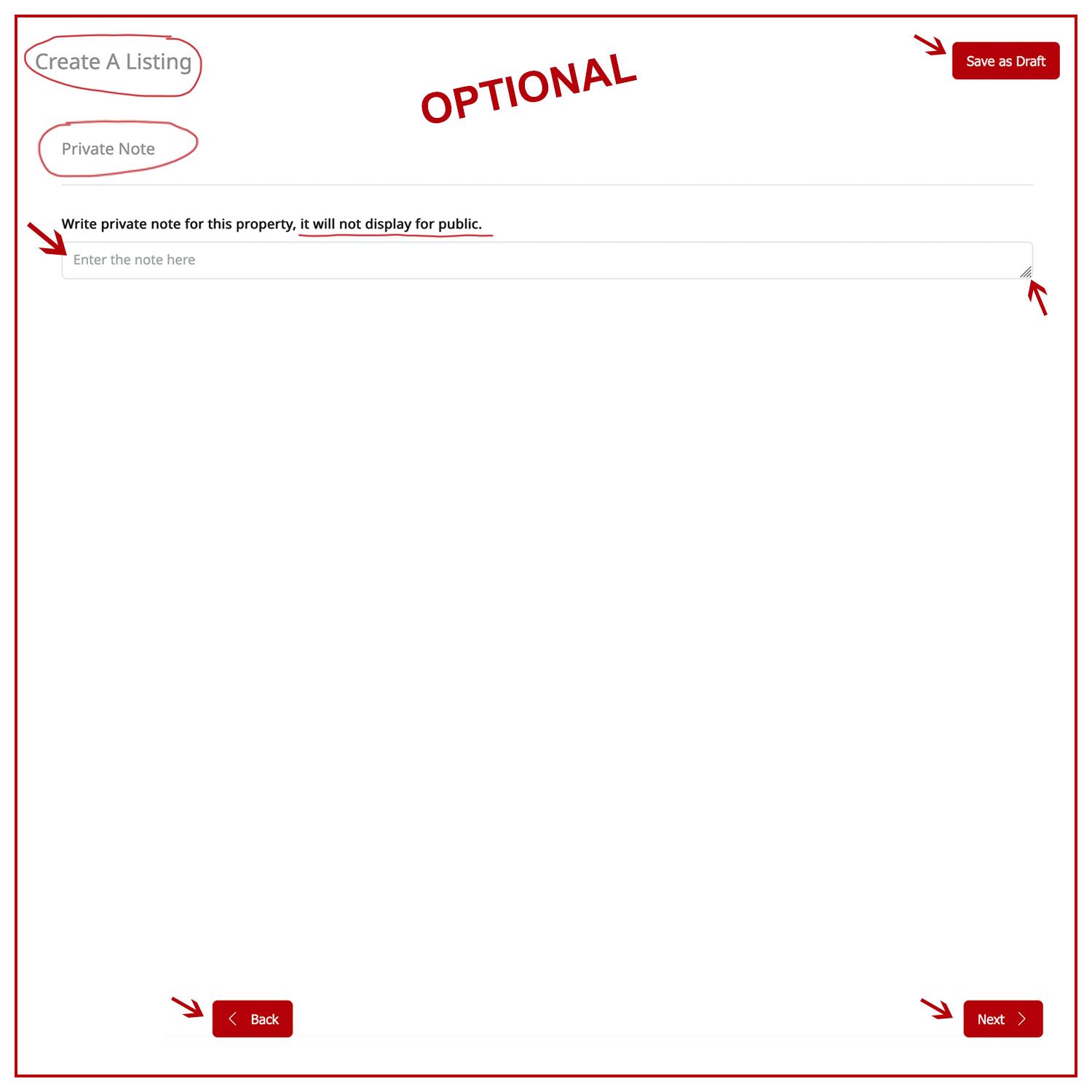
- You can save your progress at any time by clicking on the “SAVE AS DRAFT” button located at the top right-hand corner of the page.
- If needed, you can also return to the previous pages to make changes at any time by clicking on the “BACK” button located at the bottom left-hand corner of the page.
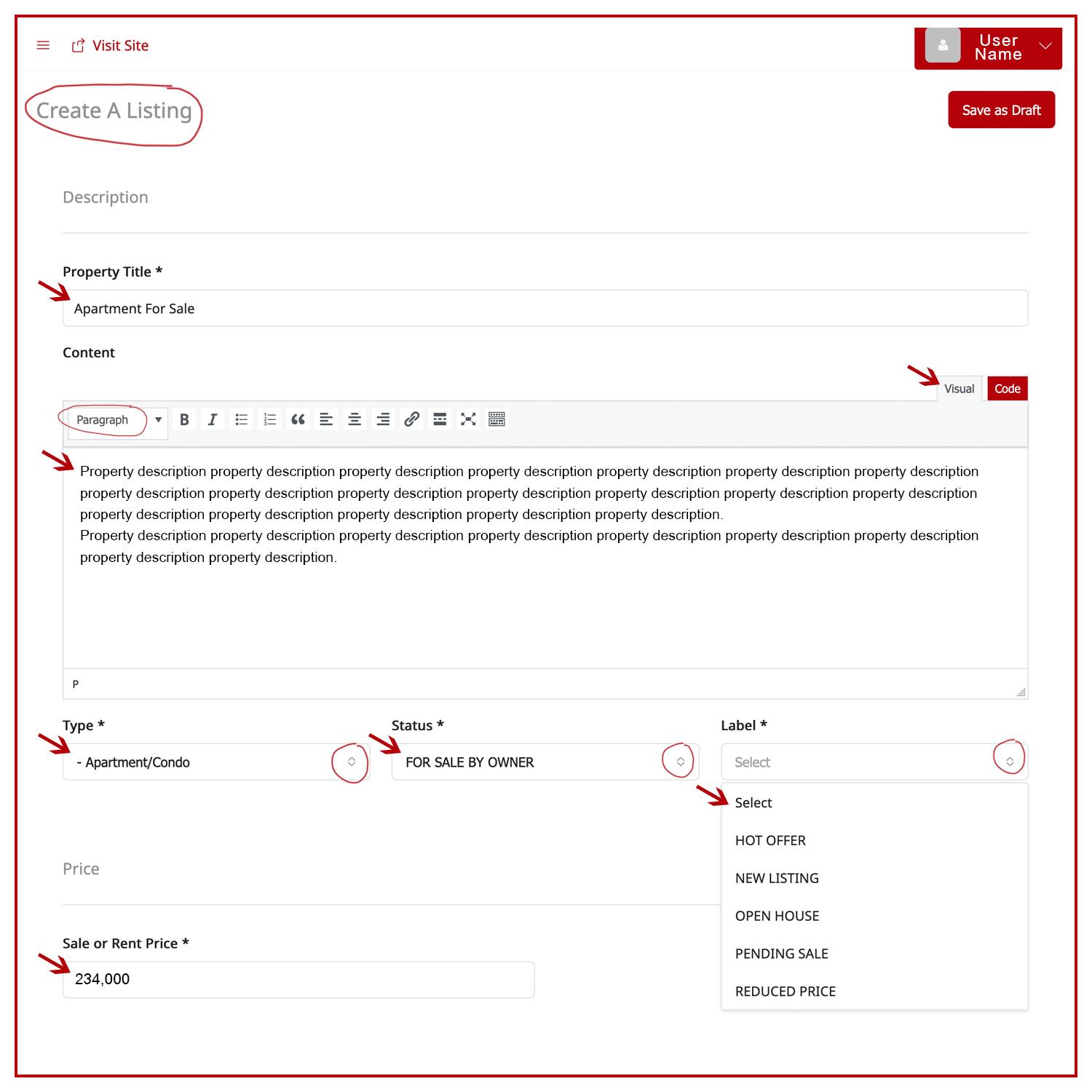
• FIRST PAGE (Description): Fill out/type in all the *REQUIRED fields such as Property Title, Content/Property Description and Sale Price. Choose/select Property Type, Property Status, and Property label from the dropdown menus available on the page (only 1 option can be selected). When you are done, click on the “NEXT” button located at the bottom right-hand corner of the page to proceed.
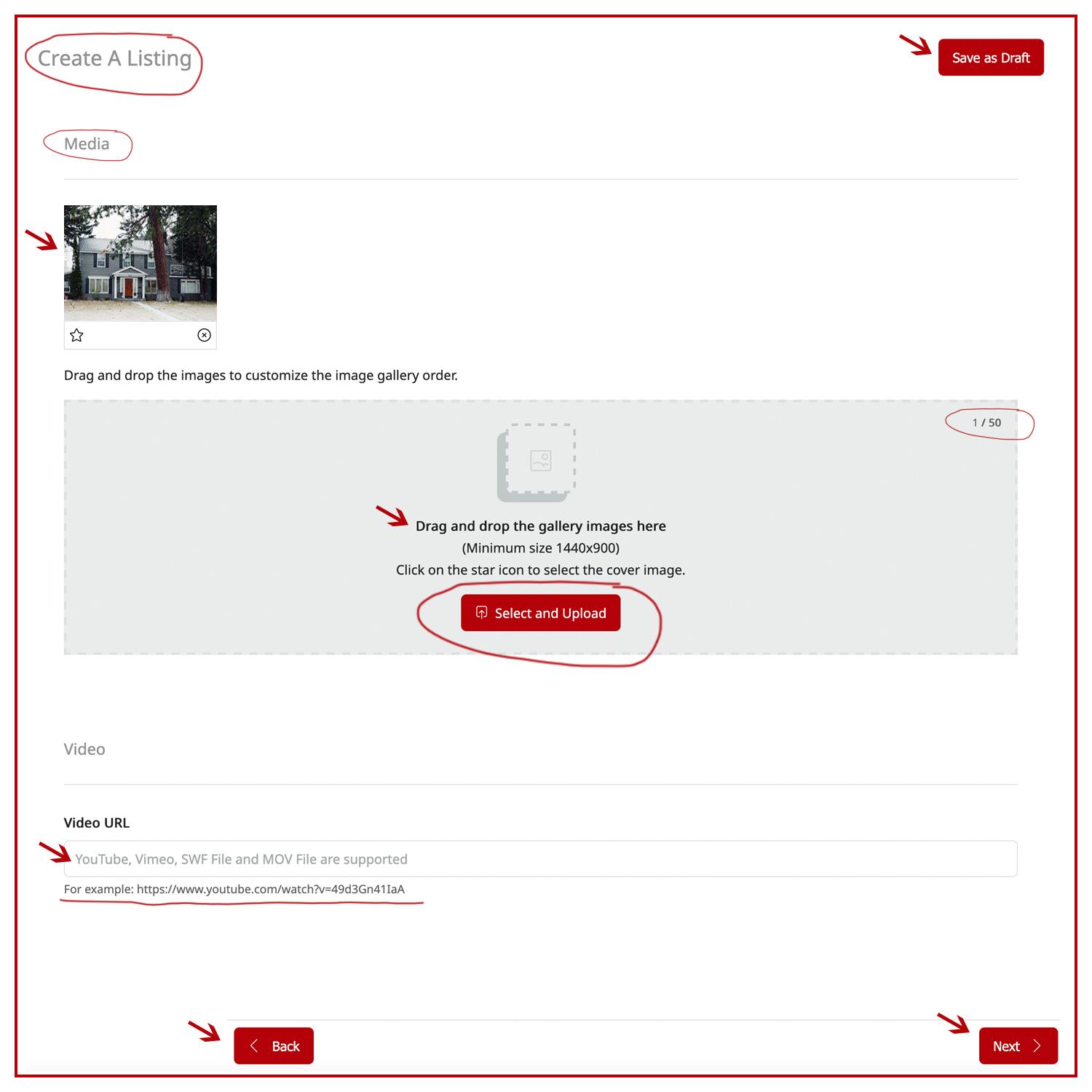
• SECOND PAGE (Media): Choose (or drag & drop) your property images and click on the “SELECT AND UPLOAD” button. If you would like to post a video of your property, copy and paste the video link (youtube, vimeo, etc) into the the VIDEO URL field, then click on the “NEXT” button.
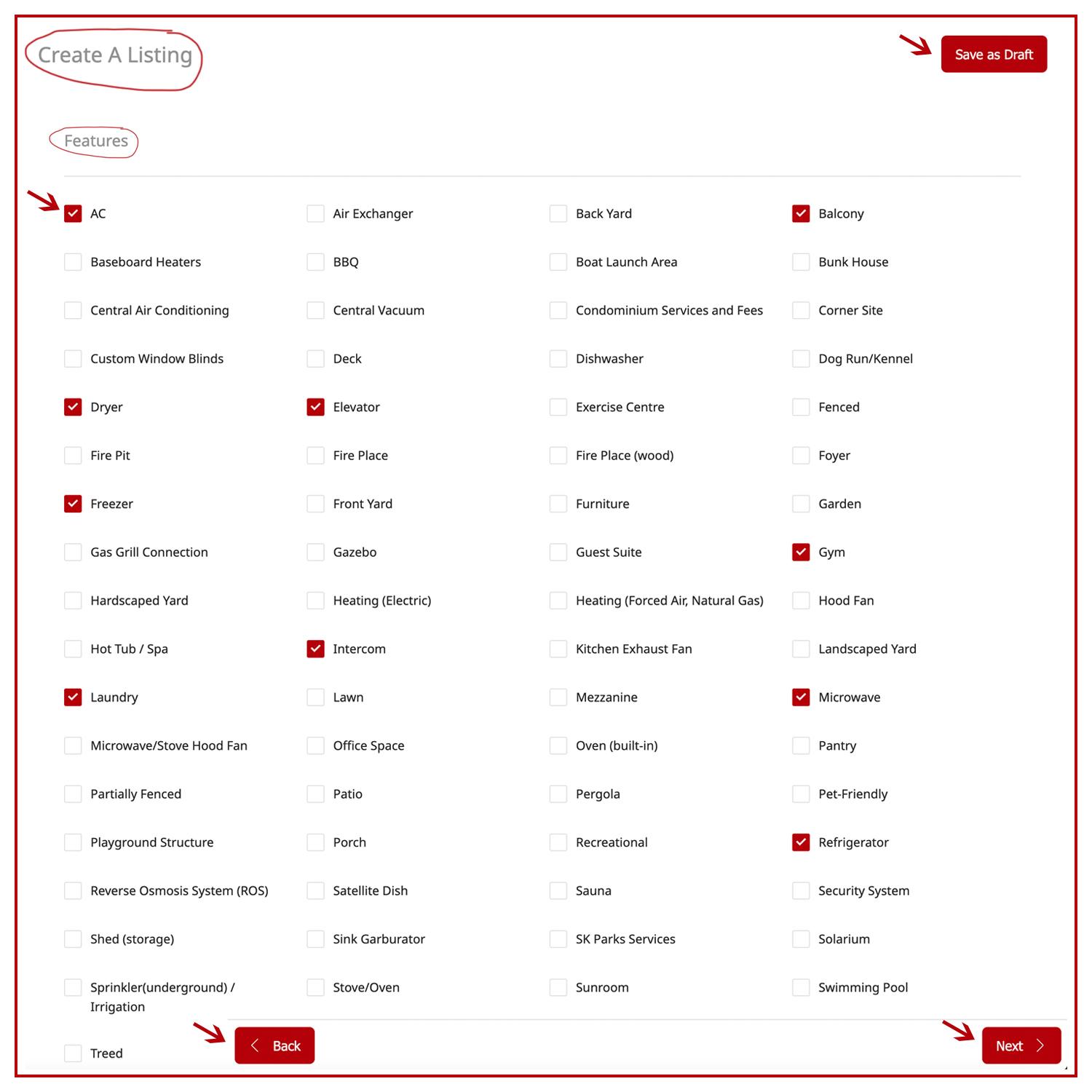
• THIRD PAGE (Features): On this page you will check mark the boxes to display all your property FEATURES such as AC, Washer, Refrigerator, etc. Once you’re done, click on “NEXT”.
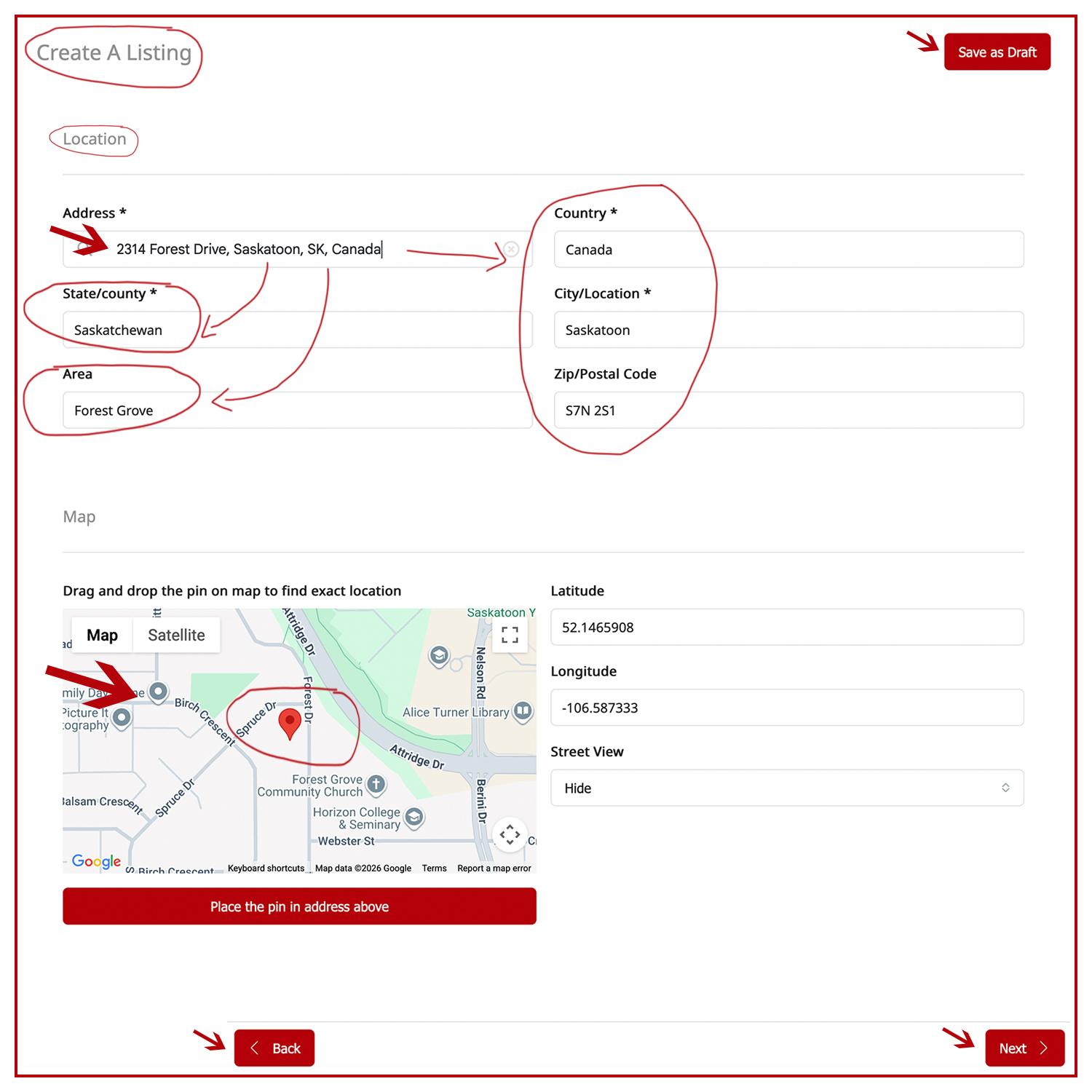
• FOURTH PAGE (Location): Type in your FULL ADDRESS including Postal Code in the “ADDRESS” field. It will automatically populate the other fields such as city, area, state, country, etc. If it doesn’t, you will need to fill them out manually one by one. Once you are done, check if the map is showing the correct coordinates and then click on “NEXT”.
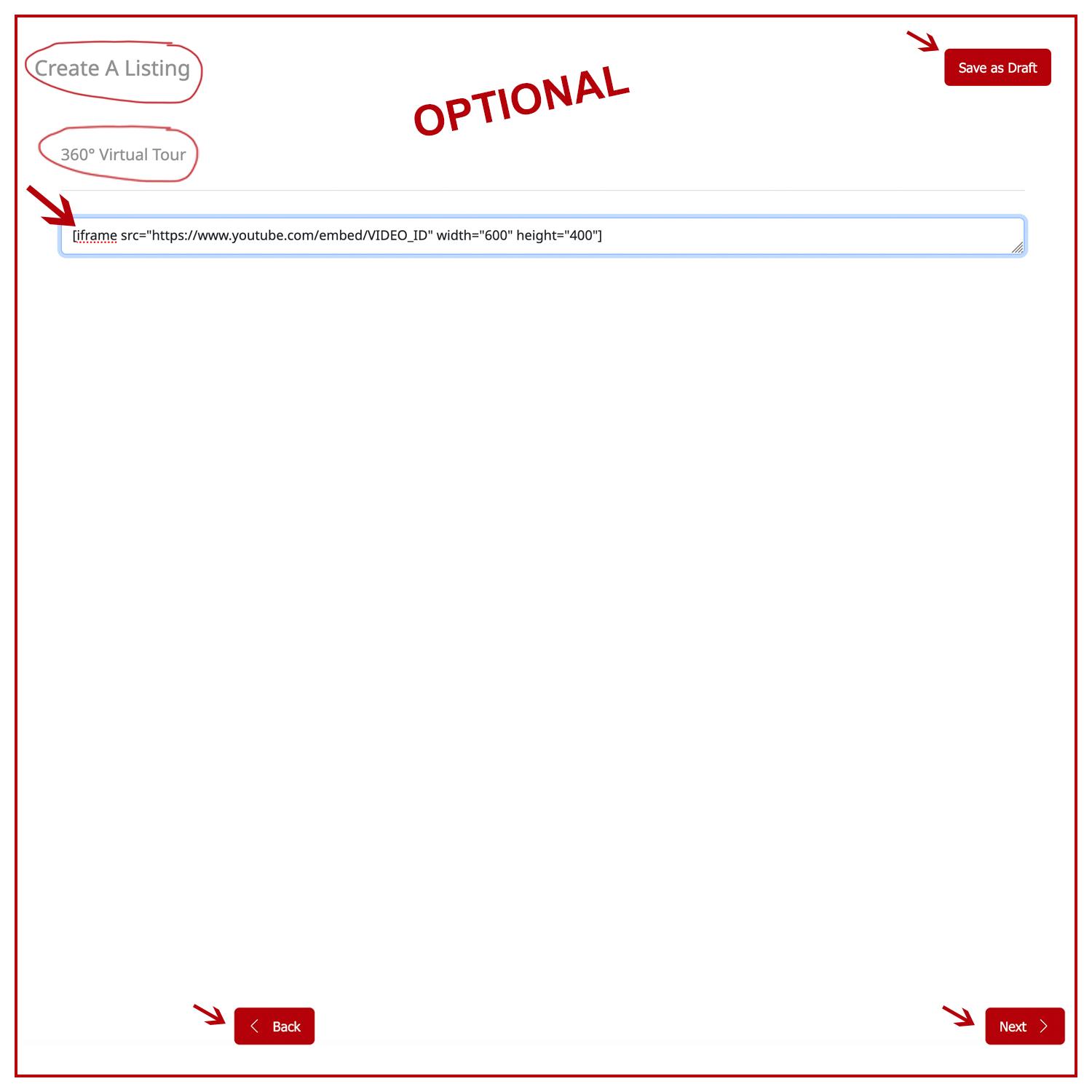
• FIFTH PAGE (360° Virtual Tour): This information is OPTIONAL. If you have a 360° Virtual Tour video of your property that you would like to show, copy and paste the IFRAME shortcode into the 360° Virtual Tour field. It has to be an iframe shortcode or it will not work. Example: [iframe src=”https://www.youtube.com/embed/VIDEO_ID” width=”600″ height=”400″]. Once done, click on “NEXT”.
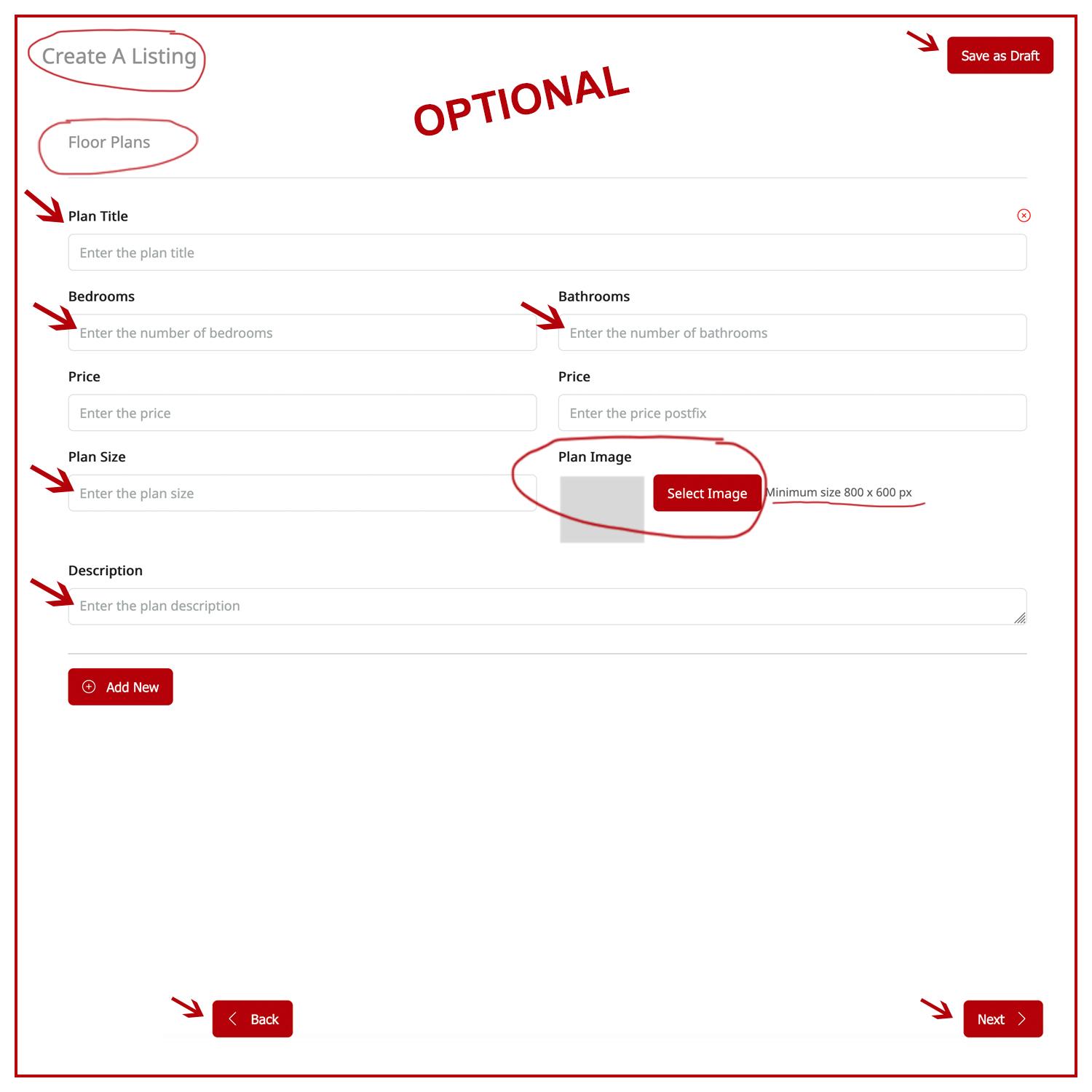
• SIXTH PAGE (Floor Plans): This information is OPTIONAL. If you would like to post your property floor plans, fill out all the fields and upload the floor plan images and then click on “NEXT”.
• SEVENTH PAGE (Private Note): This information is OPTIONAL. Use the field available on this page if you want to write a private note for this property you are listing. It is a personal note and it will not display for public. To proceed, click on the “NEXT” button.
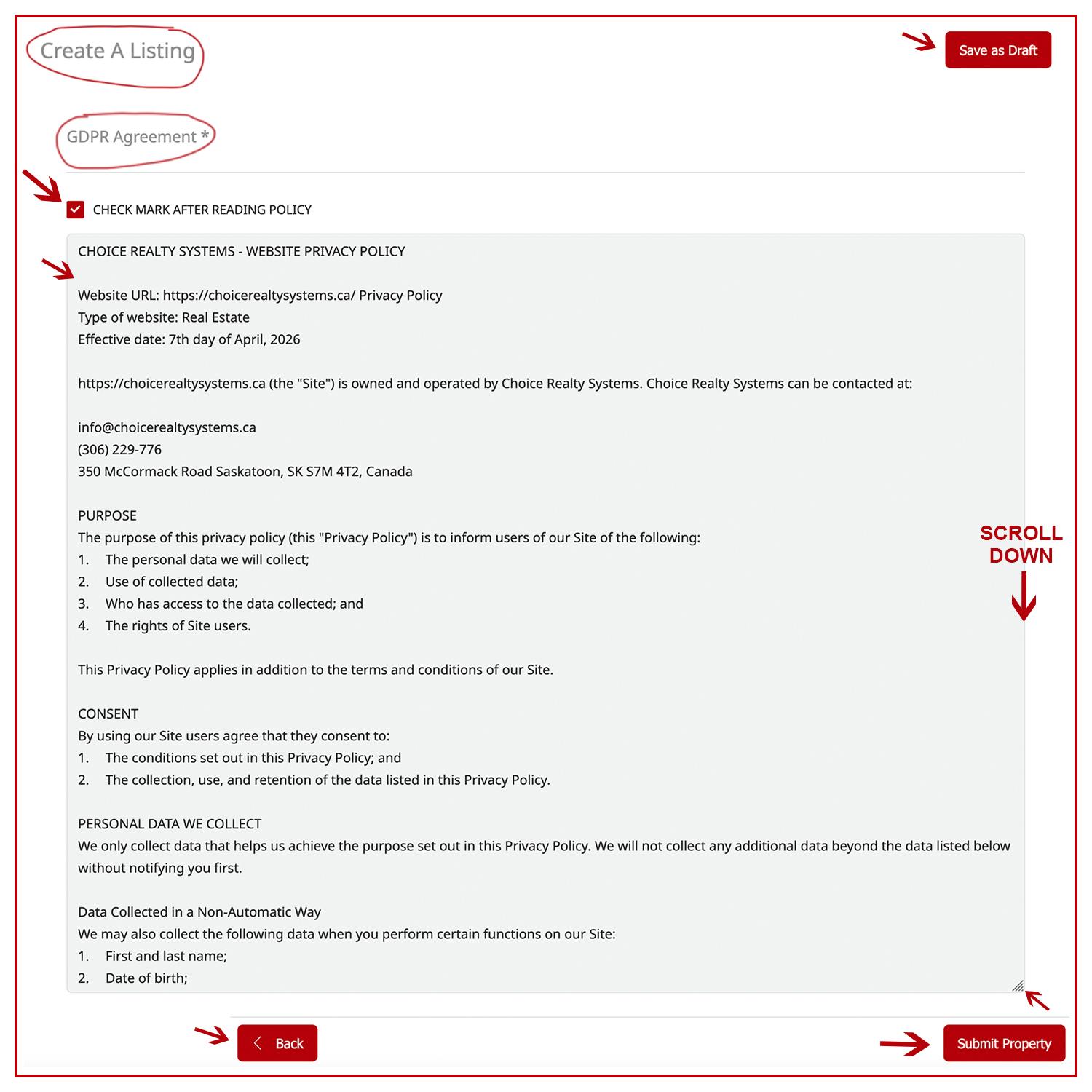
• EIGHTH/LAST PAGE (GDPR Agreement): Read the PRIVACY POLICY and check mark the box. Then click on the “SUBMIT PROPERTY” button to submit your property. Your property listing will be “on hold” until verification process is approved and payment is received. You will receive an email notification when your property is LIVE on this website and on the MLS website and its Internet affiliates.
• IMPORTANT NOTE: Review and check your listing carefully PRIOR TO SUBMIT YOUR PROPERTY, because after submitting it you no longer will be able to edit or make changes to it without Choice Realty Systems’ approval.